
How to Find Someone on X (Twitter) Without Their Username?


With millions of active users on X (formerly Twitter), finding a specific person can feel impossible especially when you don't know their username. Common, names return thousands of results, and scrolling through endless profiles wastes hours.
Method 1: Use X's Search Bar with Smart Filters
The simplest approach starts with X's built-in search, but most people use it wrong.
How to do it:
- Open X on desktop or mobile
- Tap the search icon (magnifying glass)
- Type the person's real name or nickname
- After results appear, tap the "People" filter at the top

Pro tip: Combine their name with a known detail. Instead of searching "ABC" (which returns thousands), try:
- "ABC USA"
- "ABC marketing"
- "ABC @companyname"
This dramatically narrows results. You can also toggle "Near you" in search settings if you know they're local.
Method 2: Find Someone by Phone Number or Email
X allows users to be discovered through their contact information if they've enabled this setting.
For Phone Number:
- Save the person's number in your phone contacts
- Open X mobile app
- Go to Settings & Privacy → Privacy and Safety → Discoverability and Contacts
- Enable "Sync address book contacts"
- X will show matching accounts in your suggestions
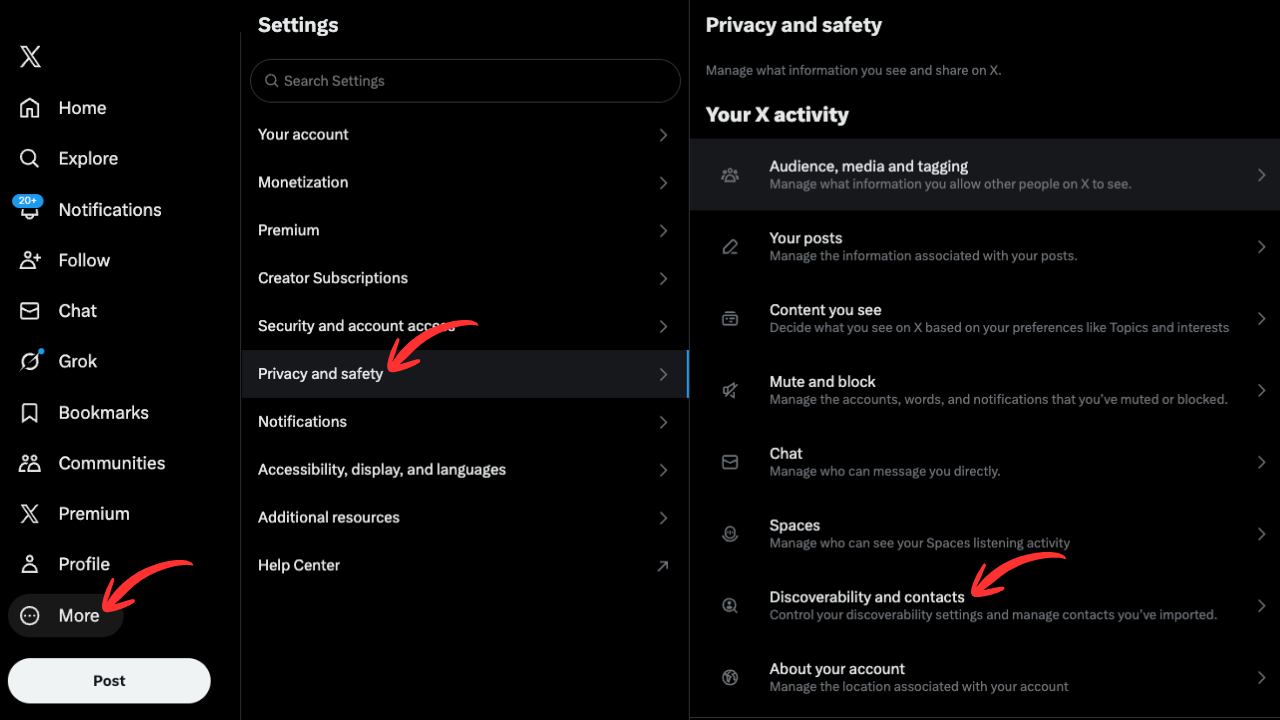
For Email: The process is identical. If their email is in your contacts and linked to their X account, they'll appear in suggestions after syncing.
Important: This only works if the person has enabled "Let others find me by phone/email" in their privacy settings. Many users disable this, so don't rely on this method alone.
Method 3: The Google Search Trick
Google often indexes X profiles better than X's own search. Use this operator:
site:x.com "Person Name"
Example: site:x.com "ABC photographer"
This searches only X.com and returns profile pages, tweets, and mentions containing that exact name. Add quotes around the name for exact matches.
Why this works: Unlike X's algorithm-driven search, Google shows all indexed pages. You'll often find profiles that don't appear in native X search.
Method 4: Search Through Mutual Connections
If you know someone who follows the person you're looking for, their account becomes your shortcut.
Steps:
- Go to the mutual friend's X profile
- Tap "Following" or "Followers"
- Use the search bar within that list to find the person
Also check:
- X Lists: People often add others to curated lists. Check if mutual connections have public lists.
- "Who to Follow" suggestions: After following the mutual friend, X's algorithm may suggest the person you're seeking.
Method 5: Reverse Image Search
When you have someone's photo but not their name, reverse image search finds their profile.
Quick method using Google:
- Go to images.google.com
- Click the camera icon
- Upload their photo or paste an image URL
- Look for X/Twitter links in results
On X directly: Reply to any tweet containing their image with @SearchThisImage. This bot automatically runs a reverse search and replies with sources.
This method is especially useful for verifying if an account is real or identifying someone from a screenshot.
Why You Still Can't Find Them: Troubleshooting
If none of the above methods work, one of these situations likely applies:
| Issue | What It Means |
|---|---|
| Private account | Their profile is protected. You can only see it if they approve your follow request. |
| Discoverability disabled | They've turned off phone/email discovery in privacy settings. |
| Account deactivated | Deleted accounts don't appear in search. They may return within 30 days if reactivated. |
| Account suspended | X removed the account for policy violations. It won't appear anywhere. |
| You're blocked | If they've blocked you, their profile is invisible to your account. Try searching while logged out. |
| Username changed | They may have changed their @handle. Try searching their display name instead. |
Quick test: Search for them in an incognito/private browser window while logged out.